TV Mode
TV Mode is TruchiEmu's couch-friendly, full-screen library experience. Flip to TV Mode to browse your entire collection with a gamepad — no mouse needed.
Overview
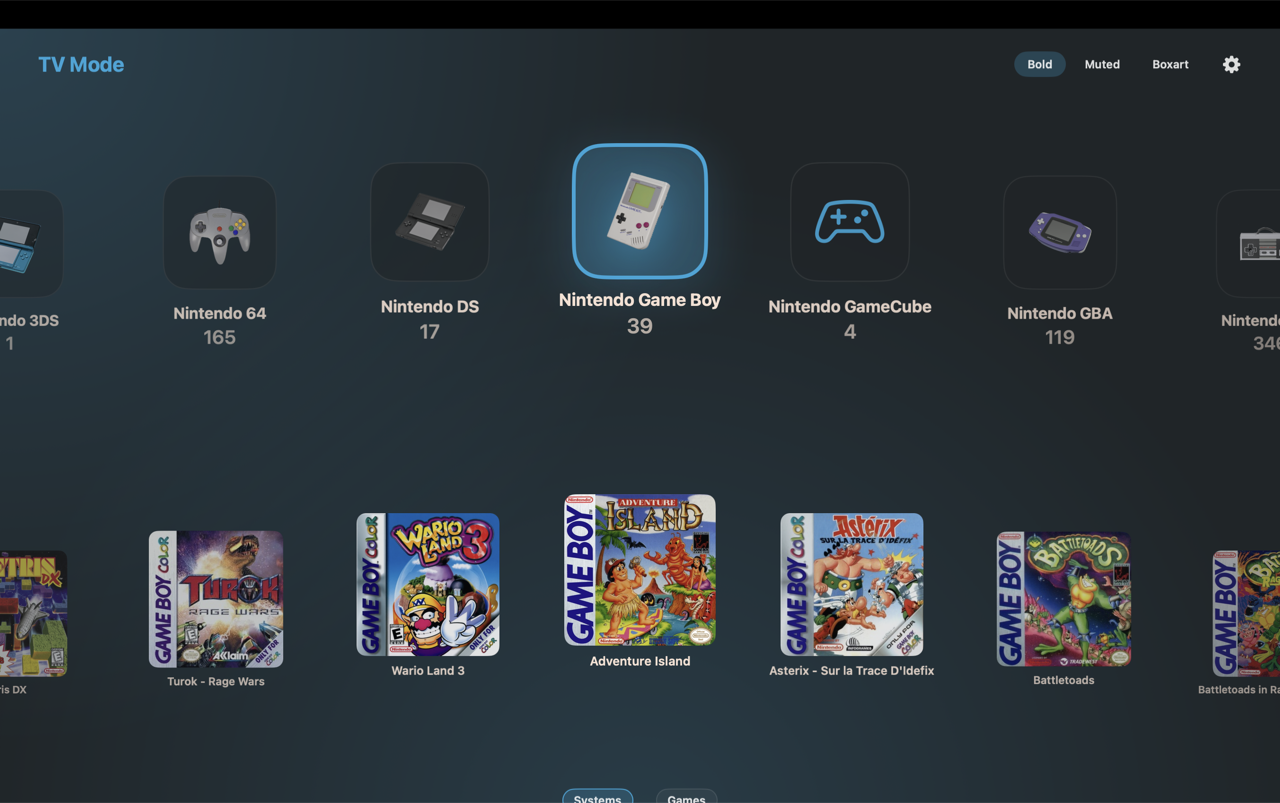
TV Mode is designed for the moment you put your laptop on the TV or sit back with a controller. The whole browsing UI re-arranges to a wide, big-tile layout with animated box-art backgrounds and crisp focus scaling. TruchiEmu remembers your filter and ROM selections when you leave TV Mode and restores them when you come back.
TV Mode carousel in motion — glide through systems with a gamepad (video, no sound)
TV Mode browsing with animated backgrounds and box-art focus
What You Get
- Gamepad Navigation: Traverse your whole library with D-pad / analog stick, A to select, B to back out, stick-click (R3/L3) to toggle the sidebar
- Auto-Repeat Navigation: Holding a direction keeps scrolling and speeds up the longer you hold
- Animated Backgrounds: The backdrop follows the focused game's box art and system artwork
- Box-Art Focus: Focused entries scale up with cleaner visuals; the overlay is removed for a sharper look
- Short-List Mode: Compact title-only list for very large libraries that would otherwise be overwhelming
- System Icon Style: Configurable icon style for system entry tiles — pick the look that matches your library artwork
- Filter & Sort: TV Mode maintains your filter and ROM selections on state restoration; reset filters at any time, and switch sort modes inline
- Resolution-Adaptive Scaling: Auto-scales the UI relative to your screen resolution for a consistent feel on 1080p, 1440p, and 4K displays
- Core Download Overlay: Trigger core downloads directly from TV Mode via an integrated overlay — no need to drop back to the desktop
- Auto-Fullscreen: Optionally returns to your previous fullscreen state when you exit TV Mode; toggle it in settings
How to Use
-
Enter TV Mode
From the Library window, open the View menu and choose TV Mode (or click the dedicated toolbar entry). The Library transitions to a full-screen TV-style layout.
-
Navigate with Your Gamepad
Use your analog stick or D-pad to browse. The focused item scales up and the background adapts. Press A to enter a system or game; press B to go back.
-
Filter / Sort / Short-List
Open the sidebar with R3/L3 (or the configured binding) to switch filter chips, sort order, and short-list mode. Filters persist on TV Mode exit and re-enter.
-
Launch a Game
Select a game to open its detail view. If the core is missing, the Core Download Overlay walks you through installing it inline; afterwards, select Play.
-
Exit TV Mode
Press the configured exit binding (or Escape / controller Back). TruchiEmu returns to the desktop library and optionally restores the previous fullscreen state.
Settings
TV Mode's separate settings let you customize icon style, toggle auto-fullscreen restoration, and adjust resolution-adaptive scaling. Find these under Settings → General → TV-Mode System Icons and the in-TV Mode sidebar.