Controller Support
TruchiEmu works with Xbox, PlayStation, MFi, Switch Pro, and most USB/Bluetooth pads — with multi-player keyboard mapping, priority-based slot allocation, disable/reset for stuck pads, and per-system overrides.
Overview
Plug in a gamepad and it just works. TruchiEmu recognizes the controller, picks a sensible button layout for the game you're playing, and is ready in seconds. From there you can fine-tune deadzones, swap any button, or remap the whole layout per system. With v1.8.1, the input stack supports multiple players on a single keyboard plus gap-slot prioritization — your friend who grabs a gamepad mid-session slots into the next empty P-slot instead of stealing your keyboard assignment.
What You Get
- Plug and Play: USB and Bluetooth controllers are recognized the moment you connect them
- Broad Compatibility: Xbox, PlayStation, MFi, and Switch Pro pads, plus most generic USB/Bluetooth controllers
- Smart Defaults: TruchiEmu picks a sensible button layout based on the controller type and the system you're playing
- Per-Controller Profiles: Each controller has its own mapping, remembered between sessions
- Per-System Overrides: A PlayStation pad can be SNES-style on one system and Genesis-style on another
- Multi-Player Keyboard Mapping: Refactored keyboard input supports multiple players from a single physical keyboard — combine a gamepad for P1 and keyboard for P2 (or vice versa)
- Gap-Slot Prioritization: When a new controller connects, TruchiEmu prioritizes the first empty slot before substituting a keyboard player — your P2 stays P2
- Replace Keyboard with Controller Option: Toggle whether a freshly-connected controller should automatically take over a keyboard-assigned slot
- Disable & Reset: Disable a stuck controller or reset the controller list without quitting the app; keyboard inputs can also be disabled/reset independently
- Live Input Display: The mapping UI mirrors your sticks and buttons live as you press them
- Deadzone & Sensitivity: Tune stick response so drift doesn't wander the character
- Remap Anything: Swap any button to any other button, including face, shoulder, and stick clicks
- Controller Type Icons: TruchiEmu shows visual icons in the toolbar and settings for Xbox, DualShock 4, DualSense, MFi, and Arcade Stick — a generic icon otherwise
- Analog Mouse: Use a stick to control the mouse in DOS and ScummVM games — see the Analog Mouse page for full details
- Hotkeys: Per-system and per-game hotkey configuration for save states, screenshots, share, Training Mode reset, and other common actions
- Switch Keys: Switch via suyu needs a
prod.keysfile — see Custom Core Import for the path
Multi-Player Configuration
TruchiEmu supports up to 4 simultaneous players. The slot assignment system can be summarized:
Slot Allocation Rules (v1.8.1+)
-
P1 is "anchored"
Player 1 is reserved — a freshly connected gamepad will never displace P1 unless you've explicitly enabled "replace keyboard with controller" and the P1 slot is keyboard.
-
First Empty Slot
When a new gamepad connects, it's assigned to the first empty P2–P4 slot. If all are full, it queues for the next disconnect.
-
Gap-Slot Prioritization
If the keyboard is currently filling the first empty slot, the new gamepad will only replace the keyboard if you've enabled "replace keyboard with controller" in Settings → Controllers. By default, the gamepad goes to the next gap (a slot that's truly empty).
-
Controller Disable
If a controller is misbehaving or stuck, you can disable it from the Controllers panel without quitting — or reset the full controller list. Keyboard inputs have the same disable/reset options.
Multi-Player Keyboard
TruchiEmu lets multiple players share one keyboard in addition to gamepads. From Settings → Controllers → Keyboard, you can configure separate keys for Player 1, Player 2, and so on — up to the max players your games support. Mixed configurations (gamepad for P1, keyboard for P2) are fully supported.
Tested scenarios: 4 gamepads, shared keyboards, and mixed gamepad-plus-keyboard setups — the slot allocation keeps people in their seats even as gamepads come and go. Disable a stuck pad in the panel; the other slots stay live.
Step-by-Step Configuration Guide
Basic Setup
-
Connect Controller
Connect via USB or pair via Bluetooth. TruchiEmu auto-detects the controller and shows a notification with the detected type.
-
Verify Slot Assignment
A notification pill shows which player slot the controller took (P1–P4). If the wrong slot, disable/reset — or simply unplug and replug.
Custom Button Mapping
-
Open Settings → Controllers
Pick a system (or use Global Default), select your controller or keyboard, then click any button in the mapping list to remap.
-
Press a Physical Button
Press a physical gamepad button or keyboard key to bind it to the selected action. The mapping UI shows the binding immediately.
-
Save/Load Named Profiles (Gamepad Only)
Save named mapping configurations for reuse — handy for switching between arcade sticks and gamepads.
-
Tune Deadzone
Adjust analog-stick deadzone and sensitivity in the same panel so drift won't wander the character.
Reset Buttons
If your controller list gets stuck or a pad stops responding, hit Disable on the row, then Reset. Keyboard inputs have the same disable/reset options.
Controller Test Sheet
The test sheet shows a live pad visualizer with buttons, sticks, and triggers. Use it to verify a new pad before play.
- Open: Settings → Controllers → Test
- Check: press buttons and move sticks; the visualizer mirrors input live
- Calibrate: set stick ranges per direction, adjust deadzone, then remap as needed
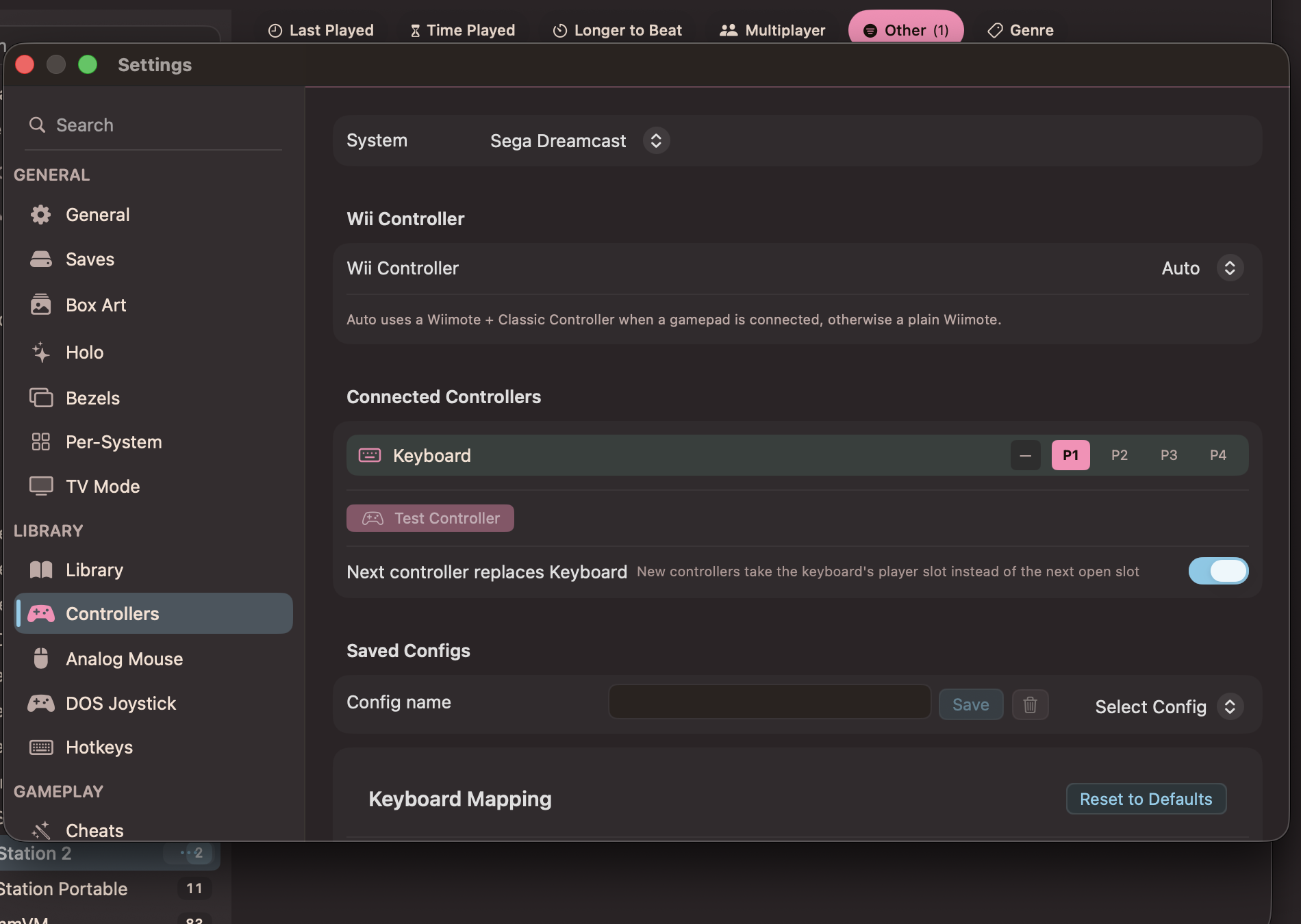
Connected controllers with P1–P4 slots and the Test Controller button