
Save State System
TruchiEmu's save state system captures and restores emulator state at any point, with an organized slot-based interface and visual management.
Overview
Save States let you snapshot the game at any moment and reload it later perfect for retrying a tough section, parking a game for later, or experimenting without consequences. Each game gets its own bank of 10 numbered slots plus an auto-save slot. Most cores support this; a few don't.
What You Get
- 10 Save Slots: Numbered 0–9, plus an auto-save slot you can load from but not write to directly
- Instant Capture: Save and load at any point, mid-level, mid-fight, wherever you are
- Thumbnail Previews: Each save captures a small screenshot, so you can see which one you want before loading
- Auto-Organized: Save states are grouped per game and labeled with a timestamp
- Undo Load: Hit
Cmd+Zright after a load to jump back to where you were handy if you picked the wrong slot - Progressive Save States: Optionally let each slot keep a rotating history (up to 5 versions) so an old save is never truly overwritten
- Auto-Save on Exit: Optionally drop into the auto-save slot when you close a game
- Auto-Load on Start: Optionally pick up right where you left off when you launch a game
Step-by-Step Configuration Guide
Basic Save State Usage
-
Save During Gameplay
While playing a game, access the save state menu from the game window toolbar or use the configured keyboard shortcut to save to the current slot. Progressive save states automatically cycle through available slots for quick consecutive saves.
-
Load a Save State
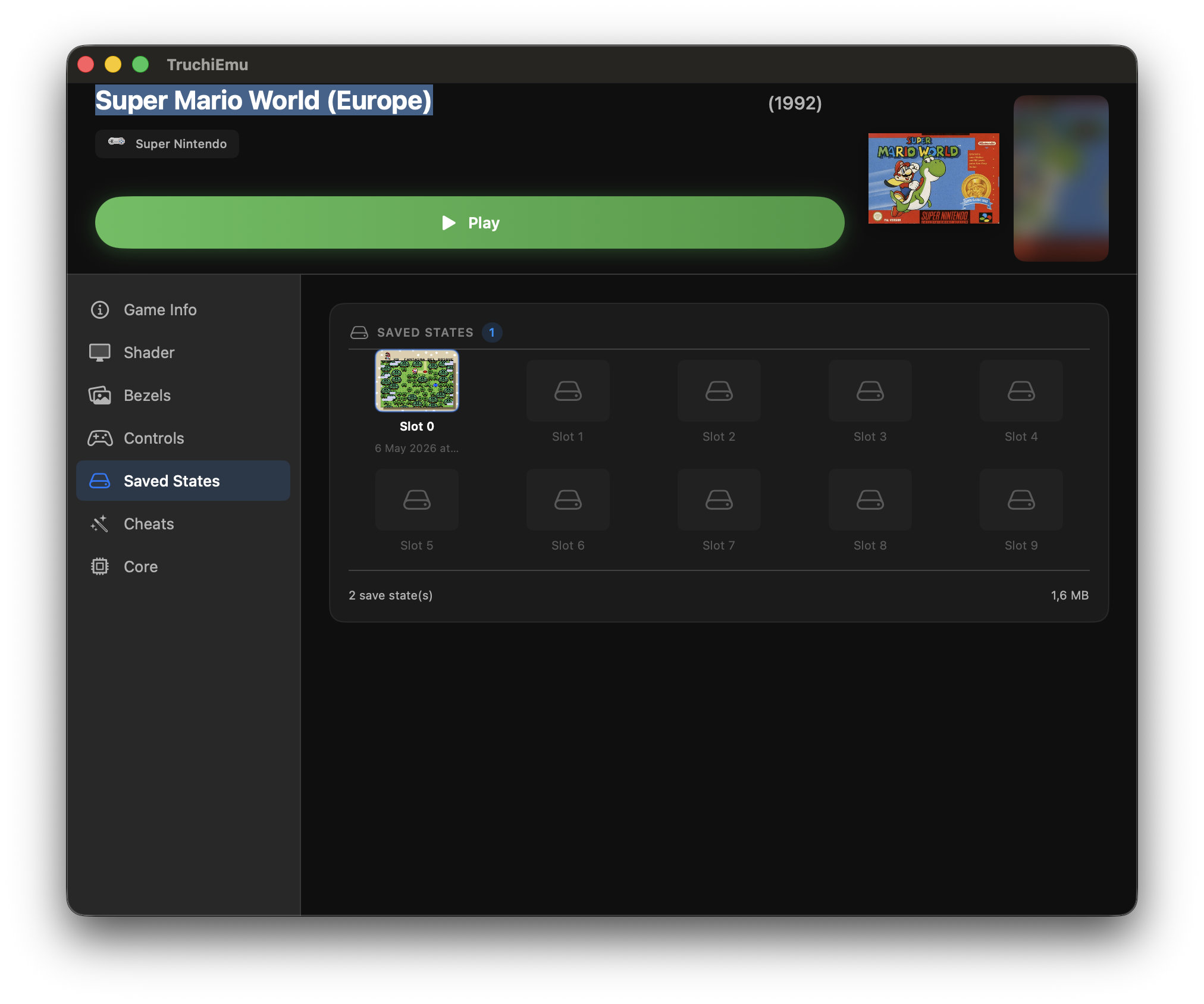
Open the save state browser to see all saved states for the current game. Click any entry to restore gameplay from that point.
-
Manage Save Slots
Use different save slots to maintain multiple save points for different playthroughs or challenges. Each slot stores a separate emulator state.